Teams
Teams let you assign groups from your identity provider to Chromatic projects. Each assignment grants every team member the same project role.
Teams require an Enterprise plan, Single Sign-On (SSO), and directory sync (SCIM).
ℹ️ Chromatic enables Teams when it configures SSO and directory sync for your account. If you already use directory sync, complete step 3 before syncing new groups.
Set up Teams
1. Configure SSO and directory sync
Configure SSO and directory sync for your account.
For Teams setup, set the SCIM userName to each person’s email address. Use the same value for their SAML NameID so SSO and SCIM update the same profile.
2. Create account role groups
Create a directory group for each account role you need. Choose at least one group for the Admin role because only an account Admin can assign Teams to projects.
3. Send the configuration to Chromatic Support
Ask Chromatic Support to enable Teams and configure:
- The directory group for each account role.
- The default account role for account collaborators who do not belong to a mapped role group. If you do not choose one, the default is Member.
- The default project role. This establishes the minimum project role for every account collaborator and enables the Teams access model.
Send this configuration through in-app chat or email support@chromatic.com.
4. Sync directory groups
Sync the directory groups you want to use for access. SCIM creates one Team for each group, including groups used for account role mapping.
Your IdP controls each Team’s name and membership. You cannot edit these fields in Chromatic. Adding or removing someone in a directory group updates their Team membership.
5. Assign Teams to projects
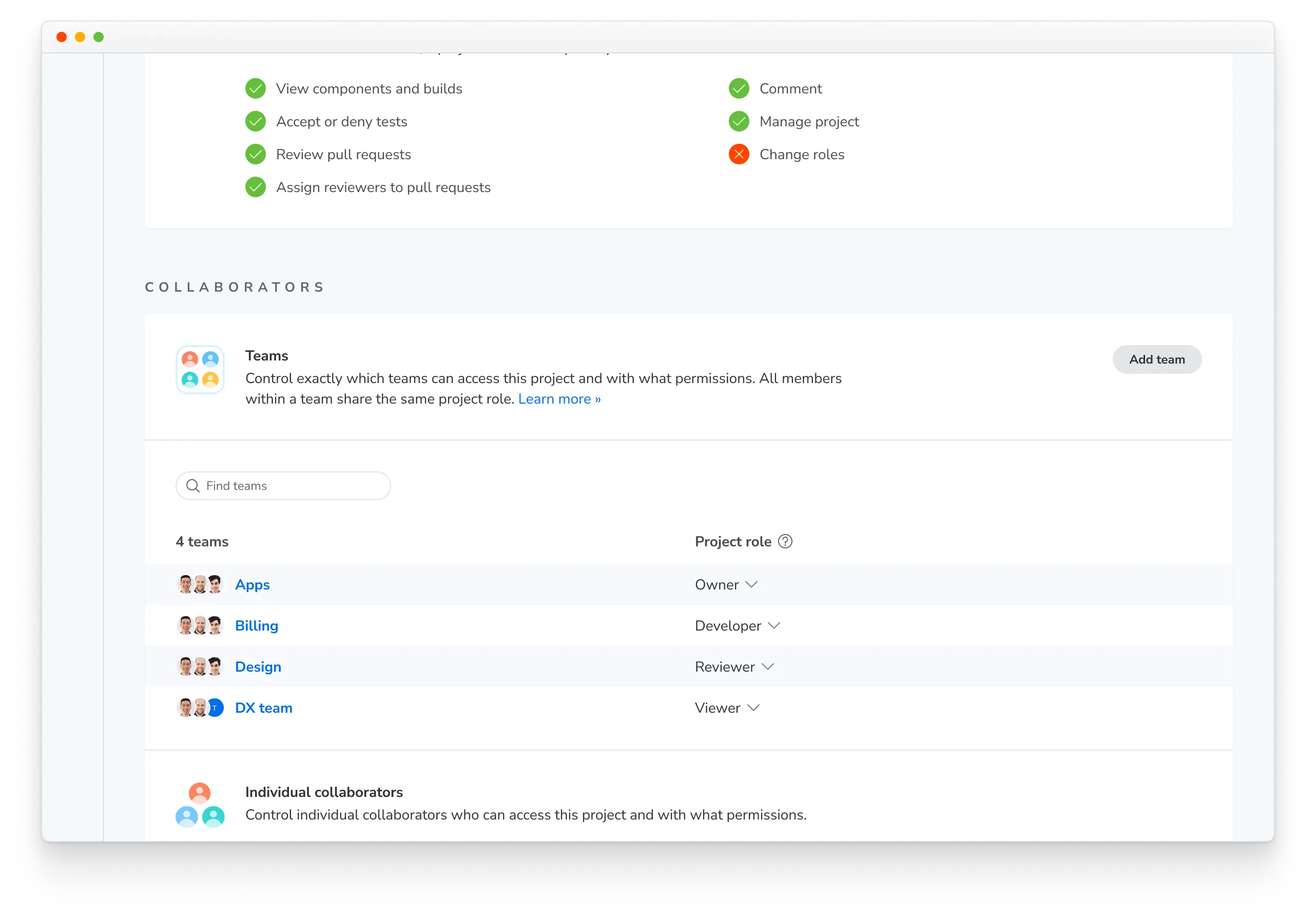
Chromatic manages Team-to-project assignments. An account Admin can assign a Team to several projects and choose a different project role for each assignment.
- Open the project’s Manage page » Collaborate tab.
- Under Teams, select Add team.
- Choose the Team and its project role.
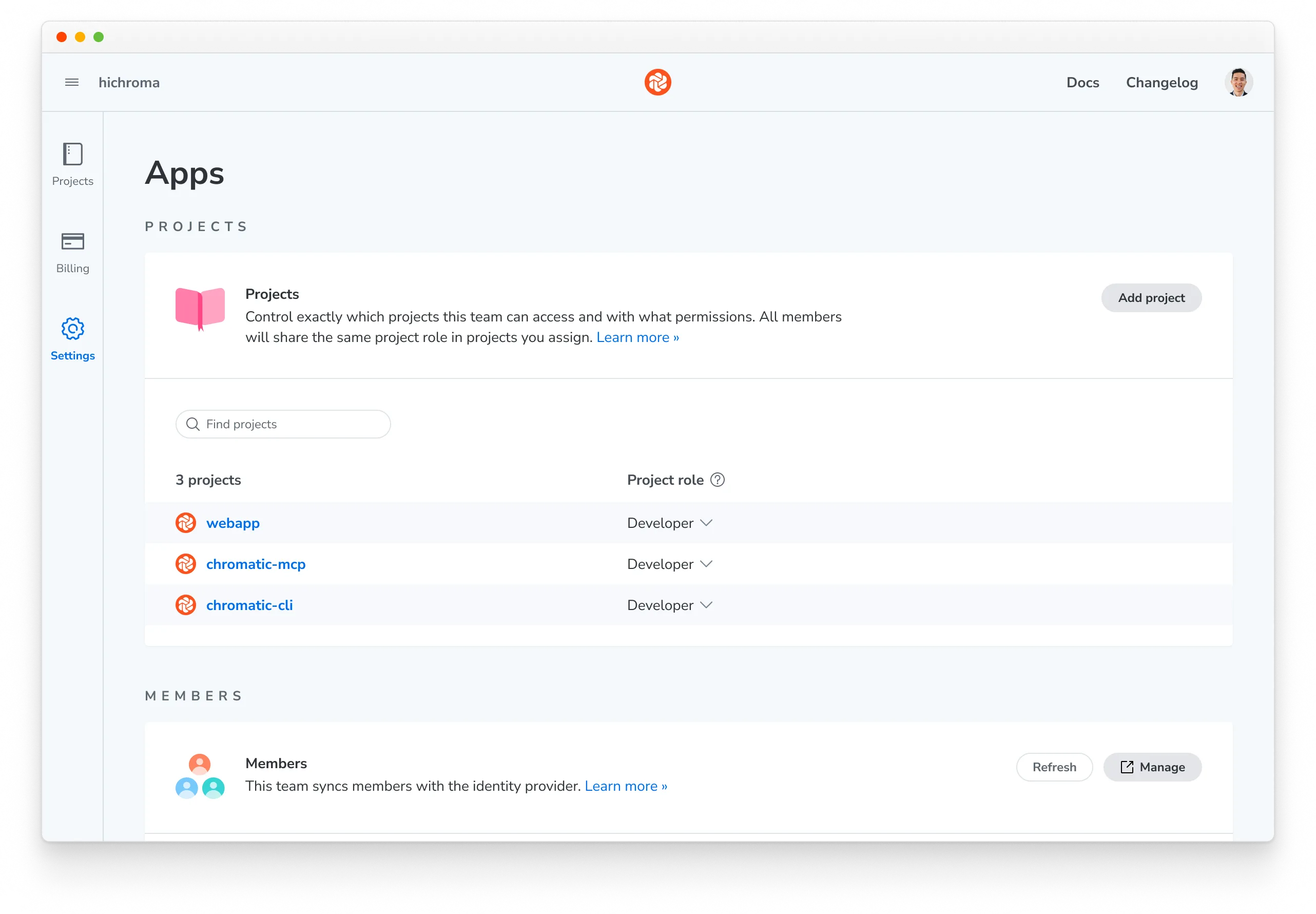
You can also open a Team and add projects from its Projects section.
- Go to Account settings » Teams. The Teams section is below the collaborator list.
- Select the Team, then under Projects click Add project, select the project, and choose a role.
6. Verify project access
Confirm that each Team grants the expected role on each assigned project. After verification, remove any direct project collaborator assignments that the Teams replace.
How Chromatic resolves a project role
A profile can receive project access from four sources. Chromatic applies the highest project role available through any source:
- Account Admin: An Admin has implicit Owner access to every project.
- Direct project assignment: A project Owner assigns a role directly to the project collaborator.
- Default project role: Every account collaborator receives this minimum role, even when their Teams grant a lower role.
- Team membership: Each assigned Team grants its configured project role. If you belong to several Teams with different roles on the same project, the highest applies.
Account roles
An account role controls an account collaborator’s access to account settings, billing, and project creation. See account roles and permissions for Admin, Billing, Member, and Viewer capabilities.
Project roles
A project role controls access within one project. See project roles and permissions when choosing a Team’s role on a project. Owner is a project role, not an account role.
Default roles
Chromatic configures both defaults on request (see step 3).
Default account role applies to account collaborators without a mapped account role. It does not override a mapped role. If it is not set, the default is Member, which allows account collaborators to create projects.
Default project role is the minimum role every account collaborator has on every project in the account. It is required for Team-based access to take effect. Support can configure Viewer, Reviewer, Developer, or None.
None grants no project access by default. Direct project assignments and Team membership can still grant access.
What SCIM manages vs. what you manage manually
| Managed through your IdP via SCIM | Configured by Chromatic on request | Managed in Chromatic |
|---|---|---|
| Identity and account membership | Group-to-account-role mapping | Team-to-project assignments and roles |
| Mapped account roles | Default account role | Direct project collaborator assignments |
| Team creation and naming | Default project role | |
| Team membership | Teams enablement |
Synced account roles and Team memberships overwrite manual edits in Chromatic. Change mapped account roles and Team membership in your IdP; manage Team-to-project assignments in Chromatic.
Migrate from legacy project role mapping
Some accounts configured before Teams use a SCIM role or roles attribute. This legacy mapping assigns one project role across every project. You can keep it until you are ready to migrate.
Complete step 3 before syncing new groups for Teams. Chromatic Support enables Teams, configures the account defaults, and coordinates cleanup of project memberships created by the legacy mapping. Do not use the legacy project role mapping and Teams at the same time.
Troubleshooting
Why don’t Teams appear after syncing groups?
Teams may not have been enabled when the groups synced. Chromatic Support can import the existing directory groups. You do not need to push the groups again.
Why doesn’t assigning a Team change project access?
The default project role may not be configured for the account. Ask Chromatic Support to confirm that Teams and the default project role are enabled.
Why did SCIM create a separate profile?
The SCIM userName may not match the email address and SAML NameID for the person’s SSO profile. Correct the identity mapping in your IdP and sync the profile again. Ask Chromatic Support to clean up the separate profile.