Collaborators and roles
Chromatic manages access at the account and project layers. Each layer has separate account collaborators, project collaborators, and roles.
Permission layers
| Layer | What access controls | Does it grant access to the other layer? |
|---|---|---|
| Account | Billing, account settings, account collaborators, and projects | No. Account collaborators may not have access to every project. |
| Project | Builds, tests, reviews, project settings, and project collaborators | No. Project collaborators cannot manage the containing account. |
If you need a permission within a project, you need the corresponding project role. An account role does not replace it, except for an account Admin.
Account collaborators
Organization accounts can have several account collaborators. A personal account has one account collaborator with the Admin role and cannot have another.
How you manage account collaborators depends on the account setup:
| Account setup | How account access is managed |
|---|---|
| Personal | The account has one account collaborator with the Admin role. You cannot add another. |
| Git-linked organization | Chromatic syncs account collaborators from the GitHub organization, GitLab group, or Bitbucket workspace with the Member role. |
| Organization with SSO | Your identity provider manages account collaborators and account roles. |
| Unlinked organization | Account collaborators sign in through a Git provider or with email and password. Contact Support to add or remove account collaborators or change a role. |
Account collaborators on a Git-linked organization account can manage billing, account settings, and projects. They still need project access to view or manage a project.
Go to the account’s Settings page to view account collaborators.
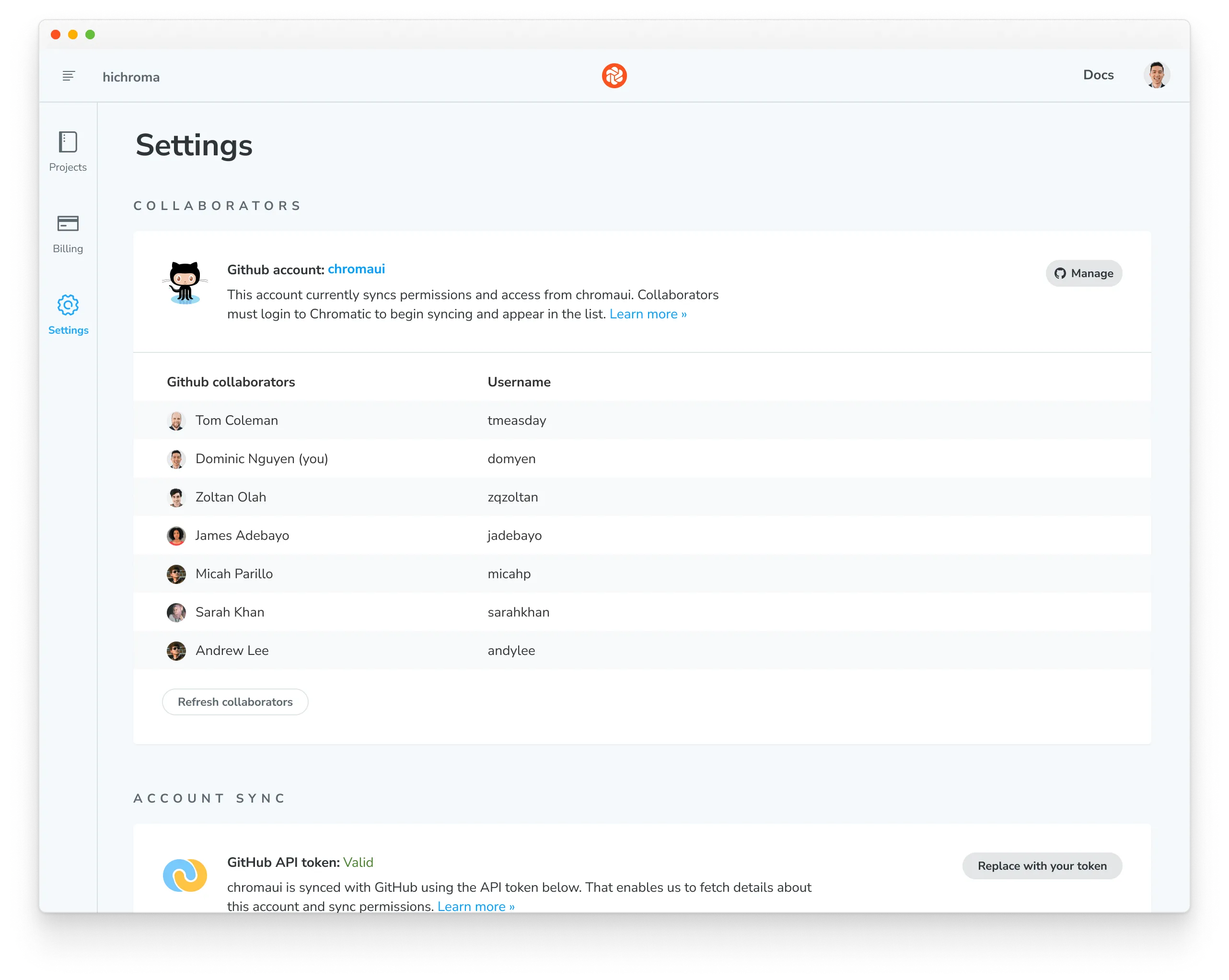
If an organization is missing when you add an account, see why the organization does not appear.
Billing access
Billing access follows the account setup:
- On a personal account, only the profile owner can manage billing.
- On a Git-linked organization account, account collaborators can manage billing.
- On an unlinked organization account, contact support@chromatic.com to assign Billing access to an existing Chromatic profile.
- On an account with SSO and directory sync, assign the Billing role through your identity provider. Identity provider updates overwrite roles set directly in Chromatic.
Project collaborators
Project collaborators can view or manage one project according to their project role. Project access can come from several sources:
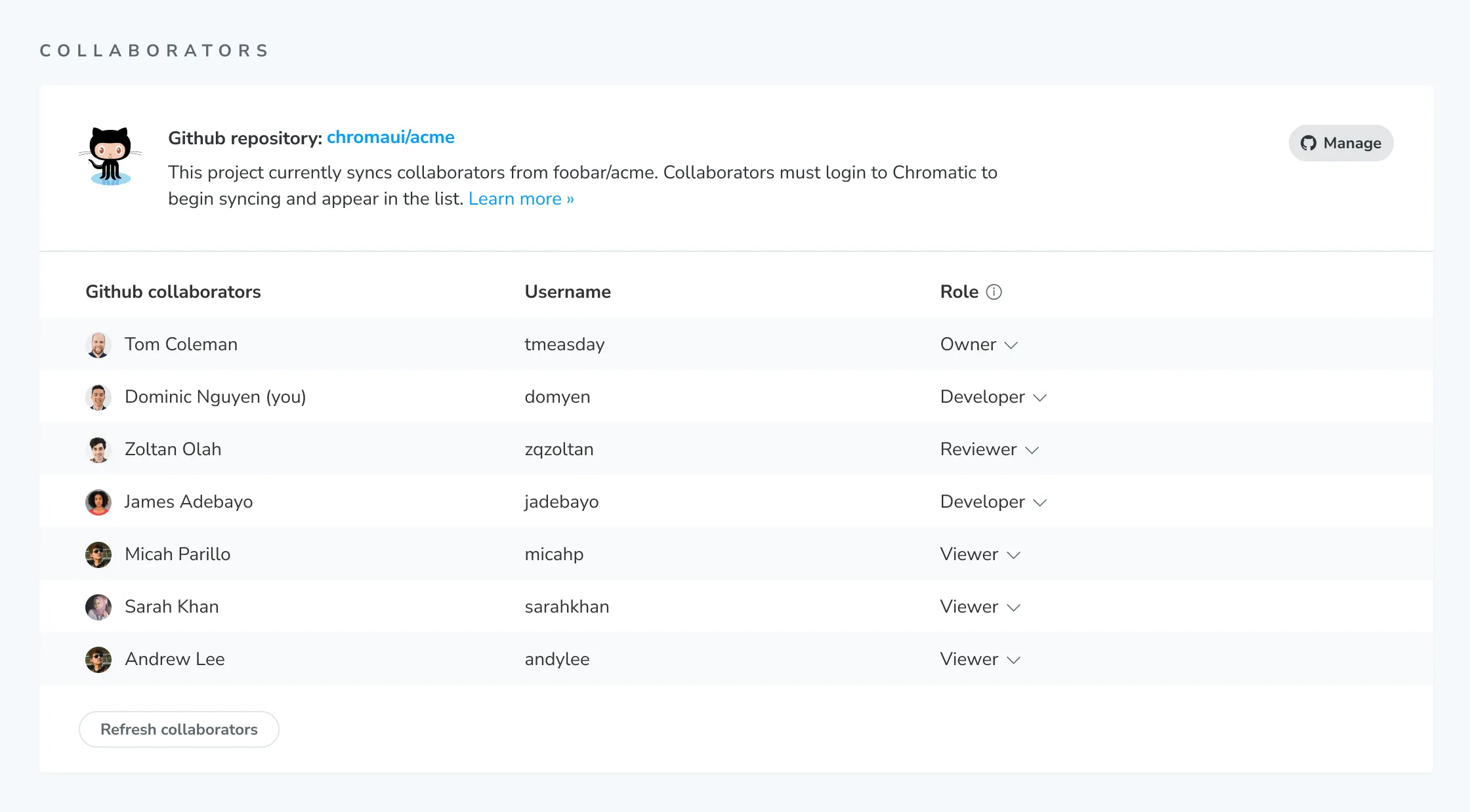
- Repository access: A linked project syncs project collaborators and default roles from its Git repository.
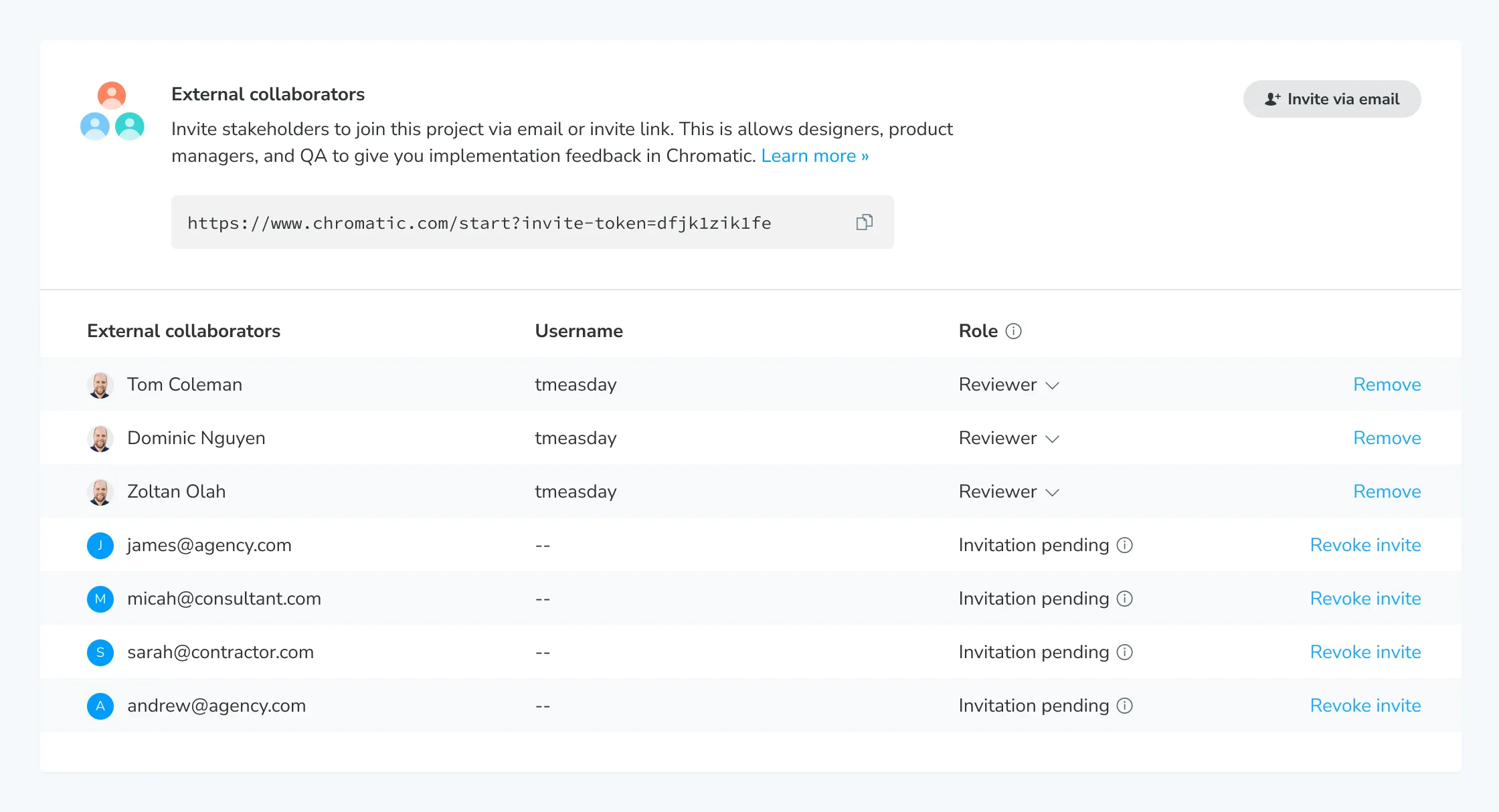
- Direct assignment: A project Owner invites a project collaborator by email or invite link and assigns a role.
- Default project role: On an account with Teams, every account collaborator receives this minimum project role.
- Team membership: On Enterprise accounts, a Team grants its members a role on each assigned project.
- Account Admin: An Admin has implicit Owner access to every project in the account.
When several sources apply, Chromatic uses the highest project role.
Repository-synced collaborators
For a linked project, Chromatic maps Git repository access to these default project roles:
| Repository access | Default project role |
|---|---|
read | Viewer |
write | Developer |
If your project is hosted in Bitbucket, you and your teammates need the contributor role.
Change repository access in your Git provider to add or remove a project collaborator. You can override a synced role in Chromatic or add a direct external collaborator.
External collaborators
External collaborators receive direct access to one project without receiving access to its account. Use this option for designers, product managers, consultants, or developers who do not have repository access.
You can invite a project collaborator in two ways:
- Invite link: Anyone with the link can join with the Developer role.
- Email invitation: Enter an email address and choose the project role before sending the invitation.
Review all external collaborator restrictions »
Roles
Roles determine what an account or project collaborator can do. Account and project roles are independent.
Account roles
| Role | Availability | What the role can do |
|---|---|---|
| Admin | Personal accounts and organization accounts with SSO | Manage account settings and billing, change non-Admin account roles on accounts with SSO, manage Team-to-project assignments, and manage every project. Has implicit Owner access to every project. |
| Member | Git-linked organization accounts, unlinked organization accounts, and accounts with SSO | Add projects and manage some account settings. On Git-linked and unlinked organization accounts, also manage billing. On accounts with SSO, view account details and account collaborators without managing billing. Project access is separate. |
| Billing | Accounts with SSO and unlinked organization accounts | Manage invoices, payment methods, and the subscription, and add projects. Does not grant access to existing projects or permission to manage Team-to-project assignments. |
| Viewer | Accounts with SSO | View account details and account collaborators without changing settings, billing, or projects. |
Every account with SSO enabled must retain at least one Admin. A personal account has one Admin and cannot have additional account collaborators.
Project roles
Project roles are assigned per project. You can hold different roles on different projects.
| Role | What the role can do |
|---|---|
| Owner | Manage and delete the project, manage tokens and Git linking, and assign project collaborator roles. |
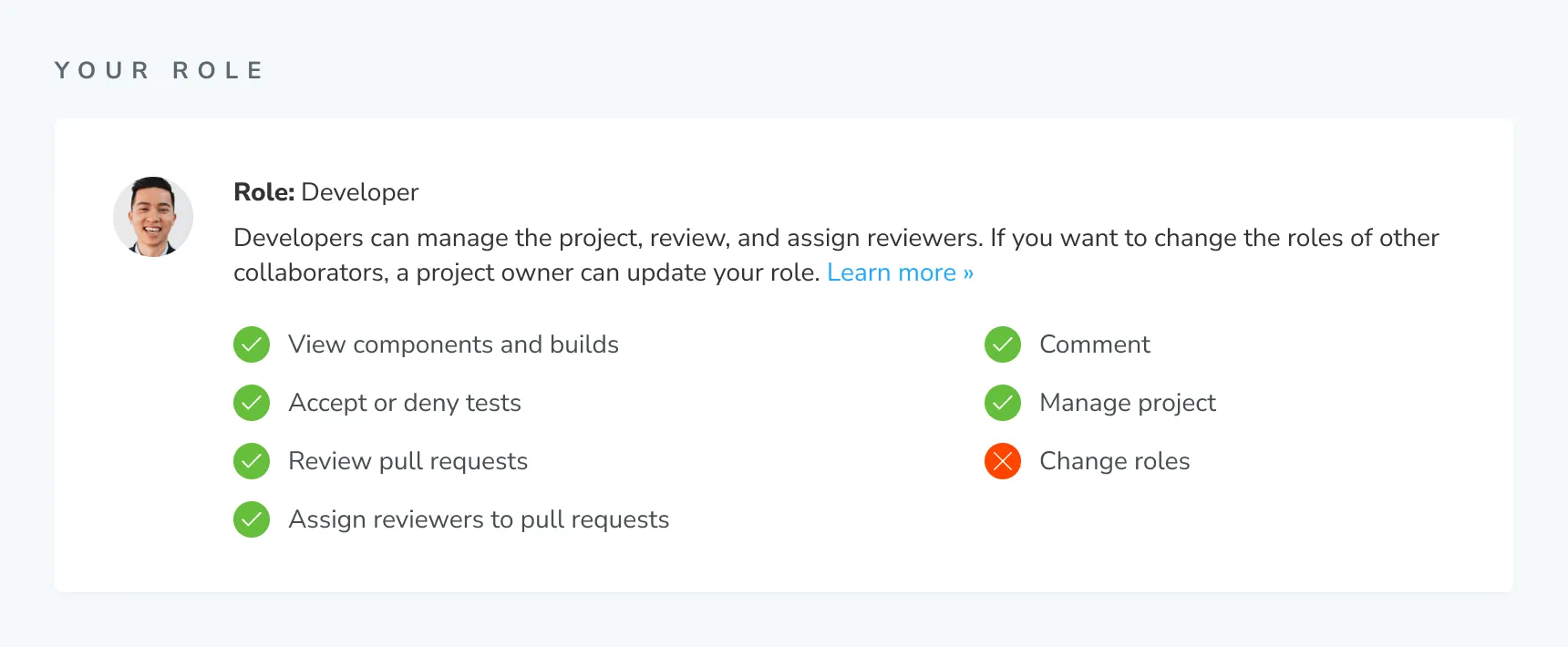
| Developer | Run builds, manage the project, review tests, approve changes, and assign reviewers. Cannot assign roles. |
| Reviewer | Comment, review tests, and approve assigned reviews. Cannot run builds, manage the project, assign reviewers, or approve their own changes. |
| Viewer | View builds, stories, tests, and review status without making changes. |
| None | No access. The project is not visible. |
Project ownership
Every project must have at least one Owner. The first project collaborator receives the Owner role automatically.
To transfer project ownership, assign another project collaborator the Owner role. You can then change your own role.
Chromatic accounts do not have an Owner role. See how account ownership works when you need to hand off an account.
View your project role
Open the project’s Manage page to see your role and its permissions.
Open source projects
Anyone can view an open source project without becoming a project collaborator. Managing or reviewing the project still requires an explicit project role.
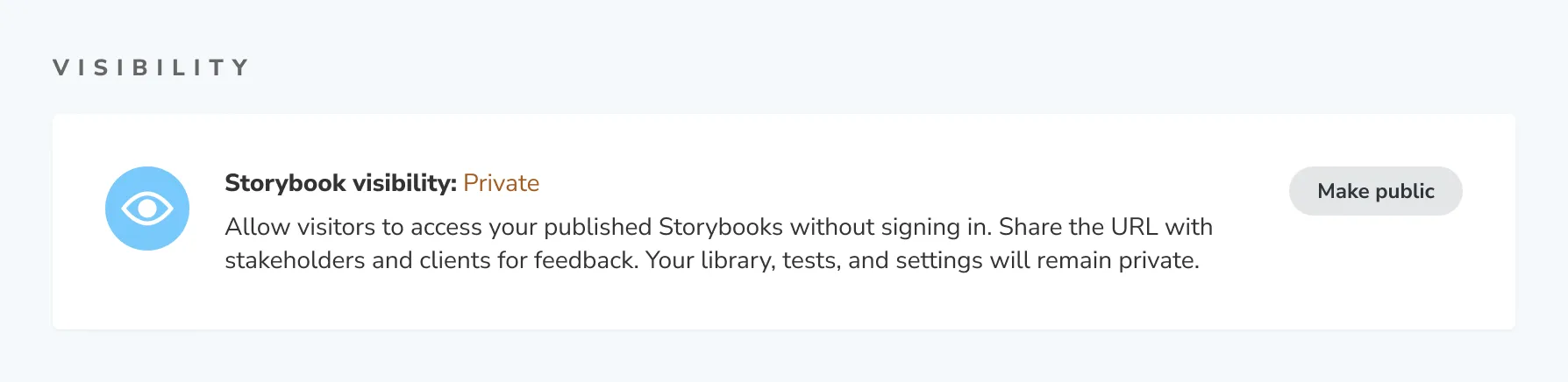
Storybook visibility
Published Storybooks are private by default. A visitor must sign in with a profile that has project access.
Linked projects with public repositories publish public Storybooks. You can also set Storybook visibility to public, which lets anyone with the link view it without signing in.
Public visibility exposes only the published Storybook. The Chromatic Library, tests, settings, Git provider details, and other project metadata remain private.
Troubleshooting
Why does my role say Member?
Member is your account role, not your project role. It does not determine whether you can review, approve, change, or delete a project.
Open the project’s Manage page to find your project role. Ask a project Owner to change it if you need another permission.
Why can't my teammates access a linked project?
This usually means Chromatic cannot confirm their repository access. Check that each teammate belongs to the Git organization and has access to the linked repository.
After changing repository access, ask them to sign out and sign back in. See how to repair the repository connection if the project still does not sync.